Adobe Merge PDF – How It Works and Free Alternatives

If you searched for Adobe merge PDF, you most likely have a few PDFs and want a single document. The short answer: the paid versions of Adobe Acrobat have a Combine Files tool that does this, but the free Adobe Acrobat Reader does not. If you don't have a paid Acrobat licence, you can merge PDFs in your browser with Merge PDF on PDF Planet, with no sign-up, no watermark and no upload of your files.
This guide explains how merging works in Acrobat, what the free options are, and how to pick the one that fits your situation.
How Adobe merge PDF works in Acrobat
In the paid editions of Acrobat (often called Standard or Pro), merging is handled by a tool named Combine Files. The exact menu layout changes between versions, but the process is much the same in recent versions:
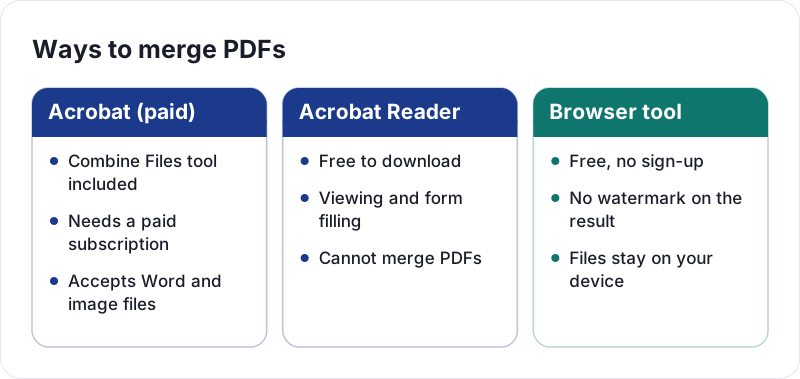
- Open Acrobat and find the Combine Files tool in the Tools area (or search for it).
- Add the files you want. Most versions also accept Word, Excel, PowerPoint and image files, which Acrobat converts as it goes.
- Drag the files or thumbnails into the order you want.
- Click Combine and wait for the new document to build.
- Save the result under a new name so your originals stay untouched.
This is a solid workflow, and if you already pay for Acrobat there is little reason to look elsewhere. The catch is the subscription, which is hard to justify when you only merge a few files once in a while.
Why Adobe Reader can't merge PDFs
This is the most common point of confusion behind searches like "merge PDF files in Adobe Reader". Adobe Acrobat Reader is the free viewer. It is built for opening, reading, printing, commenting and filling in forms. Combining several files into one is a paid Acrobat feature, so you will not find a working version of it in Reader, including older releases such as Reader X.
If you see a Combine Files option inside Reader, it generally points you to the full paid product rather than doing the job itself. Reader is fine for what it does. It just isn't a merging tool.
Adobe online merge PDF and its free limits
Adobe also runs a browser-based merge page, which is where many people land when they search for a free Adobe merge option. It works like most online tools: you select files, put them in order and download the result.
Two things are worth checking before you rely on it:
- Usage limits. Free use of Adobe's online tools is typically limited, and you may be asked to sign in or subscribe after a few uses. The details change, so check the page itself.
- Uploads. Like most online services, it sends your files to a server to process them. That is usually fine for public documents but worth thinking about for contracts, medical records or ID scans. Our guide on whether online PDF tools are safe explains what to look for.
Merge PDFs without Adobe: free built-in options
Before reaching for any extra tool, check what your computer already does.
macOS Preview. Open the first PDF, show the thumbnail sidebar, and drag the other PDF files into the sidebar at the position you want. Then save or export. It works well for a handful of files, though it can be fiddly with many.
Windows. File Explorer does not include a built-in way to merge PDFs, so you will need a separate tool.
Office documents. If your sources are Word files, you can often paste or insert the content into one document and export a single PDF. That only helps when you still have the originals, not when you already hold finished PDFs.
How to merge PDFs in your browser step by step
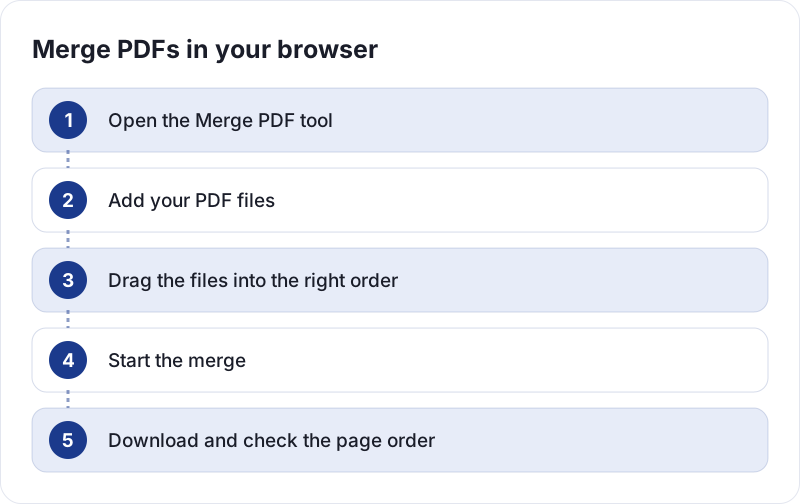
PDF Planet runs the merge inside your browser using JavaScript and WebAssembly. Your files are processed on your own device and are never uploaded, which is the main difference from Adobe's online page and most other web tools.
- Open Merge PDF.
- Add your files by dragging them in or choosing them from your device. You can add several at once.
- Drag the files into the order you want them to appear. The first file in the list becomes the first pages of the result.
- Start the merge and wait a moment. Large files take longer because your device is doing the work.
- Download the combined PDF and open it to check the page order.
There is no account to create, no daily limit and no watermark on the output. For a deeper walkthrough, see our guide on how to merge PDF files into one document.
Combining files that are not PDFs yet
Acrobat's Combine Files can take Word documents and images directly. The merge tool on PDF Planet works with PDFs, so convert other files first and then merge the results:
- Photos or scans: turn them into a PDF with JPG to PDF.
- Word documents: save them as PDFs with Word to PDF.
This adds a step, but it also lets you check each converted file before it goes into the final document.
Fix the page order and unwanted pages
Merging often shows you problems you did not notice before: a duplicate cover sheet, a blank back page, or a section that belongs earlier in the document.
If you need to tidy up after combining, open the merged file in Organize PDF. It shows every page as a thumbnail, so you can drag pages into a new order, rotate sideways ones and delete the ones you do not want. That is faster than redoing the whole merge.
Some other situations and how to handle them:
- Mixed page sizes. A merged PDF keeps each page's original size, so A4 and Letter pages can sit side by side. That is normal and usually harmless on screen, but you may notice it when printing.
- File too big for email. Merged files add up quickly. Compress PDF can shrink them, but it re-renders each page as an optimised JPEG image, so the text stops being selectable. That is a good trade for scans and photo-heavy files, and a poor one for text documents you need to search or copy from.
- Wrong file order. Check the order in the list before merging. Fixing it afterward is possible, but it is easier to get it right the first time.
Which option fits you
The right choice depends on how often you merge and how sensitive the files are.
| Situation | Best fit |
|---|---|
| You already pay for Acrobat and merge daily | Combine Files in Acrobat |
| You only have free Adobe Reader | Reader cannot merge, use another tool |
| You merge now and then and want no sign-up | A browser tool such as PDF Planet |
| Files are private or confidential | A tool that processes files on your device |
| You use a Mac and have two or three files | Preview is enough |
One honest limit: PDF Planet merges and rearranges PDFs, but it is not a full replacement for Acrobat. If you need advanced features such as OCR or form creation, you will need other software.
Quick summary
- The paid Acrobat editions merge PDFs with Combine Files. The free Reader does not.
- Adobe's online merge page exists, but free use is typically limited and your files are uploaded.
- Mac users can merge in Preview. Windows has no built-in option.
- Merge PDF on PDF Planet combines files in your browser, free, with no sign-up and no upload.
- Convert Word files and photos to PDF first, then merge, and use Organize PDF to reorder or remove pages afterward. Check the result before sending it.
Frequently asked questions
How to merge PDF files without Adobe?
Use a browser-based tool such as Merge PDF on PDF Planet, or macOS Preview if you are on a Mac. Add your files, drag them into the right order and download the combined document. Nothing needs to be installed, and on PDF Planet the files stay on your device.
How to merge PDF files with Adobe Reader for free?
You can't. Adobe Acrobat Reader is a viewer and does not include the Combine Files tool, which is part of paid Acrobat. A free alternative is to merge the files in your browser with a tool that does not need an Adobe subscription.
How to merge PDF files in Adobe Acrobat?
In a paid edition of Acrobat, open the Combine Files tool, add your PDFs or other supported files, arrange them in order and click Combine. Then save the result as a new file. The menu names can differ slightly between versions.
How to merge PDF files in Adobe Reader X?
Adobe Reader X, like later Reader versions, is free viewing software without a merge feature. To combine files you would need paid Acrobat or a separate tool. Merging in your browser is the quickest free route.
Is it safe to merge PDFs online?
It depends on the tool. Many online services upload your files to a server, which is a concern for private documents. Tools that run in your browser, like the one on PDF Planet, process the files on your own device and do not upload them.
 How to Merge PDF Files Into One Document
 How to Compress a PDF Without Losing Quality
 Are Online PDF Tools Safe to Use?