How to Merge PDF Files Into One Document
Combining several PDFs into one file is a small task that comes up constantly: a job application that wants your CV, cover letter, and certificates as a single upload, a stack of scanned receipts for an expense claim, or chapters of a report that were written separately. Merging itself takes seconds. Most of the frustration comes from what happens around it, such as pages in the wrong order, a sideways scan in the middle, or a file that turns out to be too big. This guide covers the steps and the fixes.
Step-by-step: merging PDFs in your browser
The Merge PDF tool on PDF Planet runs entirely in your browser. The files are read and combined on your own device and are never uploaded, so it works for documents you would rather not send to a stranger's server.
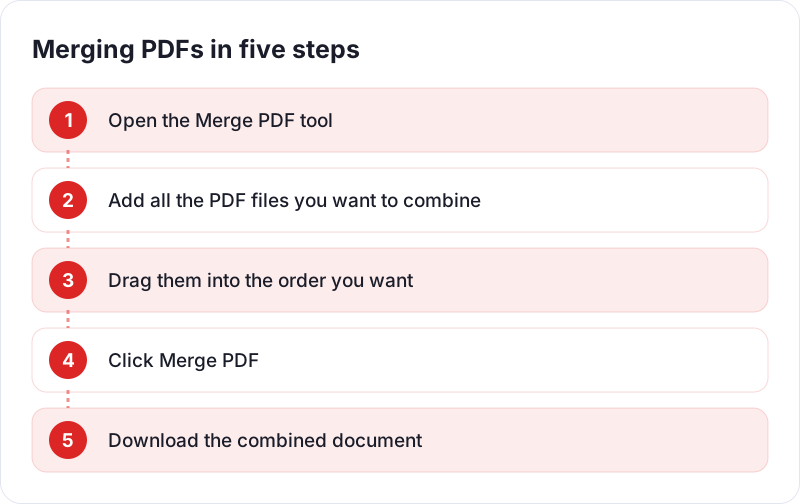
- Gather your files in one folder. It is much easier to get the order right when everything is in one place.
- Open the Merge PDF tool and add your files. You can usually select several files at once from the file picker or drag them onto the page.
- Check the order. The order of the files in the list is the order they will appear in the final document. Rearrange them before merging if needed.
- Merge and download. The combined PDF is created on your device and saved like any other download.
- Open the result and scroll through it. A quick check now saves an awkward follow-up email later.
There is no sign-up, and no watermark is added to the output.
Getting the order right
Order mistakes are the most common reason people merge the same files twice. A few habits help.
Name files with zero-padded numbers
If you name files 1-intro.pdf, 2-methods.pdf … 10-appendix.pdf, many file pickers will sort 10 before 2, because they compare names character by character. Use leading zeros instead:
01-cover.pdf02-cv.pdf03-cover-letter.pdf10-references.pdf
Now alphabetical order and the order you want are the same thing.
Decide what goes first
Readers expect a predictable structure. For applications and submissions, a common order is: cover page or form, the main document, then supporting evidence in the order it is referred to. If the recipient gave instructions, follow them exactly, even if another order seems more logical.
Fix individual pages after merging
Sometimes the problem isn't the order of the files but the order of pages within them, for example a scan where page 3 came out before page 2. After merging, use Organize PDF to drag individual pages into place, or remove blank and duplicate pages before you send the file.
Preparing files that aren't PDFs yet
If some of your material is in photo form, such as a phone picture of a signed form or a scanned ID, convert it to PDF first with the JPG to PDF tool, then merge it with the rest. Before converting, crop the photo to the document's edges if you can; a page that shows half your kitchen table looks careless in an otherwise tidy file.
Word documents and spreadsheets should be exported as PDF from the program that created them (File, then Save As or Export, then PDF). This keeps the text as real, selectable text.
Common problems and how to fix them
A page is sideways or upside down
This happens a lot with scans and phone captures. Merging does not change page orientation, so a rotated page stays rotated. Use Rotate PDF on the affected file or the merged result. It is worth fixing; reviewers often read on a laptop and won't turn their head for your page 14.
Pages are different sizes
When you merge a US Letter document with an A4 document, or a scan with a typed page, each page keeps its original size. Most PDF viewers handle this fine, scaling each page to the window. It can look uneven when printed, but the content is all there. If consistent sizing matters, for instance for a printed booklet, set the same paper size when exporting or scanning the original files.
A file won't load because it is password-protected
Encrypted PDFs that need a password to open cannot be merged until the protection is removed. The browser tools on PDF Planet do not unlock PDFs. Open the file in a viewer where you can enter the password, and if you are allowed to, save or print an unprotected copy, then merge that.
The merged file is too large to upload
A merged file is roughly the sum of its parts, and scanned pages add up fast. Options, in order of preference:
- Remove pages you don't need, such as blank backs of scanned sheets.
- Compress the merged file. Our guide to compressing a PDF explains which method suits which kind of document.
- If there is a hard limit, split the submission into two clearly named parts.
Bookmarks, links, or form fields went missing
Merging focuses on pages. Depending on the tool, document-level features such as the bookmark panel, fillable form fields, and some internal links may not carry over to the combined file. If you need a fillable form to stay fillable, send it as a separate file rather than merging it.
A digital signature shows as invalid
A digitally signed PDF contains a cryptographic signature that covers the file's exact contents. Combining it with other pages creates a new document, so the original signature will no longer validate. If the signature matters to the recipient, send the signed file on its own.
The browser becomes slow with very large files
Because merging happens on your device, your computer's memory is doing the work. Hundreds of high-resolution scanned pages can be heavy, especially on older phones. If the page becomes sluggish, merge in batches (for example, the first half and the second half) and then merge the two results.
Finishing touches
Once everything is in order, a couple of extras make a combined document easier to use:
- Page numbers. If someone will refer to "page 12" in a call or review, Add Page Numbers adds them consistently across the merged file, which is much tidier than each section restarting at 1.
- A clear file name. Something like
Smith-J-application-2026.pdfis easier for the recipient to find later thanmerged (3).pdf. - A final read-through. Scroll through every page once. It takes a minute and catches the sideways scan or missing page before anyone else does.
 Are Online PDF Tools Safe to Use?
 What Is HEIC and How Do You Convert It to JPG or PNG?
 PNG vs JPG vs WebP and When to Use Each Format