How to Compress a PDF Without Losing Quality
A PDF that is too large to email or upload is one of the most common document headaches. The good news is that most oversized PDFs can be made much smaller. The honest news is that "without losing quality" depends on what is inside the file. Some PDFs shrink dramatically with no visible change, and others can only get smaller if you accept a trade-off. This guide explains where the size comes from, the two main ways to reduce it, and how to pick the right one for your document.
What actually takes up space in a PDF
A PDF is a container. It holds text, fonts, vector drawings, images, and a structure that ties them together. When a file is unexpectedly large, the cause is usually one of these:
- Images. This is the most common culprit. A phone photo dropped into a document at full resolution, or a scanner set to a high resolution in color, can add several megabytes per page.
- Embedded fonts. PDFs usually include the fonts they use so the document looks the same everywhere. A well-made PDF embeds only the characters it needs (a "subset"). A full embedded font, especially one covering Chinese, Japanese, or Korean characters, can be large.
- Leftover data from editing. Many PDF editors save changes by appending them to the end of the file. Old versions of edited objects can remain inside, invisible but still taking space.
- Duplicated resources. When files are combined, the same logo or font may end up stored several times.
A quick test: is your PDF text or pictures?
Open the file and try to highlight a sentence. If individual words highlight, the text is real text, which is extremely compact. If nothing highlights, or the whole page selects as one block, the page is an image, usually from a scanner or a phone camera app.
The two main approaches to PDF compression
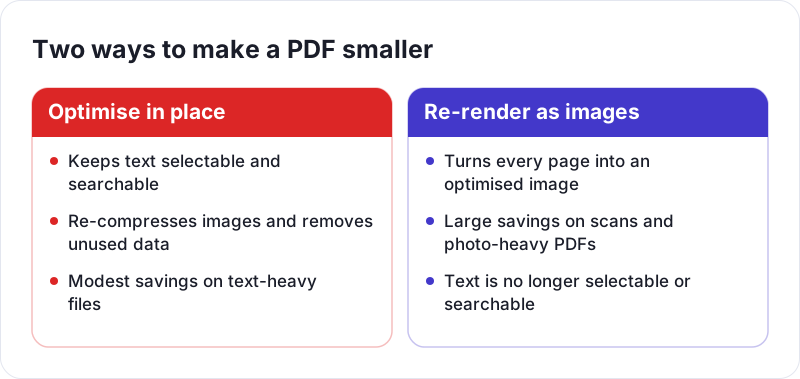
1. Optimizing the existing file
This approach keeps the document's structure and only changes the parts that are wasteful. A typical optimizer will:
- Downsample images that exceed a target resolution (for example, reduce a 600 DPI image to 150 DPI for on-screen reading)
- Recompress images with JPEG at a chosen quality
- Subset fonts and remove unused objects
- Rewrite the file cleanly, discarding old revisions
Text stays as text, so it remains sharp at any zoom level, searchable, and selectable. Links and bookmarks usually survive. Tools that work this way include Adobe Acrobat's "Reduce File Size" and "Optimize PDF" features, the "Reduce File Size" filter in macOS Preview (which can be very aggressive with images), and the free command-line program Ghostscript:
gs -sDEVICE=pdfwrite -dPDFSETTINGS=/ebook -dNOPAUSE -dBATCH -sOutputFile=smaller.pdf original.pdf
The /ebook preset targets roughly 150 DPI images. /screen targets about 72 DPI (smaller, rougher), and /printer targets about 300 DPI (larger, print quality).
If the PDF was exported from Word or another office app, the simplest fix is often to export it again. Word's "Save as PDF" dialog has an option to optimize for minimum size, and compressing the pictures inside the original document before exporting helps too.
2. Re-rendering each page as an image
The second approach draws every page as a picture, encodes it as an optimized JPEG, and builds a new PDF from those images. This is how the Compress PDF tool on PDF Planet works. It runs entirely in your browser, so the document is never uploaded anywhere.
This method is very effective for scanned documents and image-heavy files. A scan saved at a needlessly high resolution, or a PDF built from full-size phone photos, can shrink a lot.
The trade-off is real and worth understanding before you use it:
- Text becomes part of an image. You can no longer select, search, or copy it.
- Links, bookmarks, and fillable form fields are not kept.
- A PDF that is mostly real text may not get smaller, and can even get larger, because vector text is already far more compact than a picture of it.
| What is in your PDF | Best approach |
|---|---|
| Scanned pages or photos | Re-render as images, or downsample images |
| Text-heavy report with a few pictures | Optimize the file, or re-export from the source |
| Forms you need to keep fillable | Optimize the file only |
| Mixed document you only need to read | Either; compare the results |
Why JPEG settings matter for documents
JPEG compression splits an image into 8×8 pixel blocks, converts each block into a set of frequency components, and then rounds off the fine detail the eye is least likely to notice. The quality setting controls how aggressive that rounding is. Photos hide this well. Sharp, high-contrast edges, like black text on white paper, do not. At low quality you will see faint smudges or "ringing" around letters.
So for scanned text, favor a moderate or higher quality setting and accept a slightly larger file. For photo-heavy pages you can usually go lower without anyone noticing. If you want more background on how image formats differ, see our guide to PNG vs JPG vs WebP.
A practical routine for the smallest file that still looks right
- Know your target. Many email services cap attachments at around 20 to 25 MB, and upload forms often state their own limit. If you are already under it, you may not need to compress at all.
- Remove what you don't need. Blank scanned pages, duplicate pages, and appendices nobody asked for all add weight. The Delete PDF Pages tool removes them without touching the rest of the document.
- Split instead of squeezing. If a portal has a strict limit, sending two reasonable files is often better than one over-compressed file. Split PDF can break a document into parts.
- Choose the method based on content. Scans and photo documents suit re-rendering. Text documents suit optimizing or re-exporting.
- Keep the original. Compression, especially lossy compression, cannot be undone. Always work on a copy.
How to check the result
Don't judge a compressed PDF from the thumbnail. Open it and:
- Zoom to 100% and then 200% on the page with the smallest print
- Check signatures, stamps, and handwritten notes, which tend to lose clarity first
- Look at any charts or tables with thin lines
- If the document will be printed, print one test page
- Confirm whether you still need searchable text; if you do, the image-based method is the wrong choice
Can you really compress without any quality loss?
Strictly speaking, truly lossless compression only removes redundancy: unused objects, duplicate resources, inefficient encoding. That sometimes gives a big reduction, but often only a modest one. Larger savings almost always involve recompressing or downsampling images, which removes some data. The practical goal is no visible loss for the way the document will be used. A contract read on screen does not need 600 DPI images. A brochure going to a commercial printer does.
Match the compression to the purpose, check the output, and keep the original.
 What Is HEIC and How Do You Convert It to JPG or PNG?
 PNG vs JPG vs WebP and When to Use Each Format
 Image Resolution and DPI Explained