Are Online PDF Tools Safe to Use?
PDFs tend to hold exactly the kind of information you'd least like to lose control of: contracts, bank statements, tax forms, medical letters, ID scans. Yet when you need to merge, split, or compress one quickly, the natural move is to search for a free online tool and drop the file in. Whether that is safe depends almost entirely on one question: where does the processing actually happen? This guide explains the difference, the realistic risks, and what to check before you hand over a sensitive document.
Two very different ways online tools work
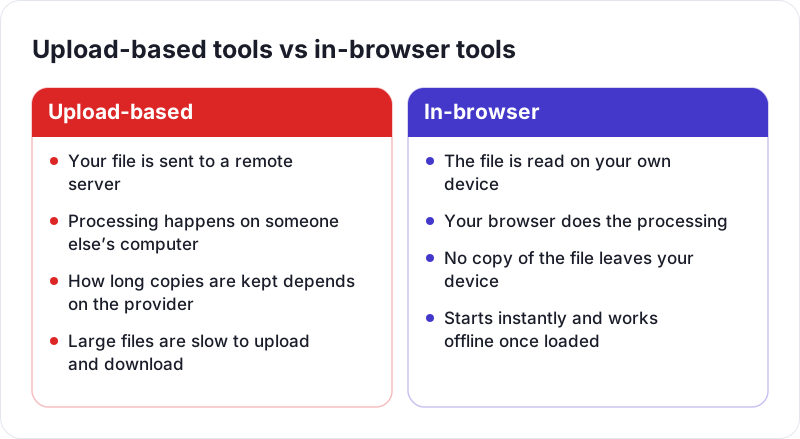
Upload-based tools
Most traditional online PDF services work like this:
- Your browser uploads the file to the company's server.
- The server processes it.
- The result is stored temporarily so you can download it.
- The files are deleted later, according to the service's policy.
Reputable services encrypt the upload in transit and delete files after a set period, often stated in their privacy policy. Many are run responsibly. But the model means a copy of your document exists, at least for a while, on a computer you don't control. You are trusting:
- That files are actually deleted when the policy says, including from backups and logs
- That the service's servers and staff access are well secured
- That any third-party hosting or processing providers they use are equally careful
- That the company's location and the laws that apply to it suit your needs
- That the policy won't change in ways you don't notice
For a restaurant menu, none of that matters much. For a passport scan, it might.
In-browser tools
Modern browsers can do serious work on their own. With JavaScript and WebAssembly (a way of running compiled code at near-native speed inside the browser), a web page can open, edit, and save PDFs and images entirely on your device. The page's code is downloaded once; your file is read from your disk into the browser's memory, processed there, and the result is handed back to you as a download.
This is how every tool on PDF Planet works, from Merge PDF to image conversion. Your files are never uploaded to a server. There is also no account to create, so there is no profile linking you to the documents you process.
The practical difference is that there is no stored copy anywhere else to be leaked, retained, or misused. The file only ever exists on your own machine.
How to check whether a tool really processes files locally
You don't have to take any website's word for it, including ours. Two simple checks will tell you a lot.
Watch the Network tab
- Open the tool's page in a desktop browser.
- Press F12 (or right-click and choose Inspect) and open the Network tab.
- Clear the list, then process a file.
- Look at the requests that appear. Pay attention to the size column and to any request using the POST or PUT method.
If a 5 MB PDF is being uploaded, you will see a request of roughly that size leaving your browser. With an in-browser tool, you may see small requests for ads, fonts, or page assets, but nothing the size of your document.
Try it offline
Load the tool's page, then disconnect from the internet (turn off Wi-Fi or enable airplane mode) and process a file. An upload-based tool can't work without a connection. A local tool usually will. This test is less conclusive than the Network tab, because a page could in theory hold data and send it later, but it's a quick sanity check anyone can do.
A checklist for any online PDF tool
Whatever tool you use, these questions are worth a minute:
- Does it say where processing happens? Vague phrases like "secure" or "safe" mean little on their own. Look for a specific statement that files stay on your device, or a specific deletion period if they don't.
- Does the privacy policy match the marketing? Skim the section on uploaded files and retention.
- Is the connection HTTPS? Almost every site uses it now, but a missing padlock on a file-handling site is a clear stop sign.
- Does it ask for more than it needs? A tool that requires an account, an email address, or browser extension permissions just to rotate a page is collecting more than the task requires.
- Does it modify your output? Some free services add watermarks or footers to the result. That's not a security issue, but it's worth knowing before you send the file to someone.
Risks that remain even with local processing
In-browser processing removes the server from the picture, but it doesn't make your whole setup risk-free.
- Browser extensions. Extensions with permission to "read and change data on all websites" can see what happens on any page. Keep extensions to ones you trust, or use a private window where extensions are disabled by default.
- Shared or public computers. The finished file goes to your Downloads folder like any other download. On a shared machine, delete it when you're done.
- The device itself. If a computer has malware, no website can protect your files from it.
- Trust in the site's code. A page's scripts all run together in your browser, so the site still matters. The Network tab check above is how you verify what it does.
Safety tips that have nothing to do with the tool
Many document leaks come from the PDF itself rather than the service used to edit it.
Fake redactions
Drawing a black box over text in a PDF editor often hides it visually while leaving the text in the file. Anyone can copy it out. A quick way to check a "redacted" PDF before sending it is to run it through PDF to Text: if the hidden words appear in the extracted text, the redaction didn't work. Proper redaction tools remove the underlying content, and so does turning pages into images, for example with PDF to JPG, since a picture of the page contains no text layer.
Hidden metadata
PDFs can store an author name, the software used, creation dates, and sometimes earlier titles. Most PDF viewers show this under Document Properties. Check it before sharing documents outside your organization.
Mark the copies you share
When you send identity documents to a landlord or a new employer, adding a visible note such as "Copy for rental application, November 2026" makes the copy less useful if it ends up somewhere it shouldn't. Watermark PDF can add that text across each page.
The bottom line
Online PDF tools aren't inherently safe or unsafe. Upload-based services require you to trust how a company stores and deletes your files. In-browser tools remove that step, because your documents never leave your device, and you can confirm that yourself in a couple of minutes. For everyday files either approach is usually fine. For anything sensitive, prefer local processing, check what the tool actually does, and look at what's hiding inside the PDF before you share it.
 How to Merge PDF Files Into One Document
 How to Convert PDF Pages to JPG or PNG Images
 What Is HEIC and How Do You Convert It to JPG or PNG?