What Is HEIC and How Do You Convert It to JPG or PNG?
If you have ever copied photos from an iPhone to a Windows PC, or tried to upload one to a website, you may have run into files ending in .heic that refuse to open. HEIC is not a fault or a corrupted file. It is a modern image format that Apple chose for good reasons, and it simply isn't supported everywhere yet. This guide explains what HEIC is, why your phone uses it, and the easiest ways to get a JPG or PNG when you need one.
What HEIC actually is
HEIC is a combination of two things:
- HEIF (High Efficiency Image File Format) is a container format standardized by the Moving Picture Experts Group (MPEG), the same group behind MP3 and MP4. A container defines how images and related data are packaged into one file.
- HEVC (High Efficiency Video Coding, also called H.265) is a video compression standard. HEIC files store their images using the same techniques HEVC uses to compress a single video frame.
So a .heic file is a HEIF container holding HEVC-compressed images. You will sometimes see .heif files too; they are closely related, and the terms are often used interchangeably.
Why iPhones use HEIC
Apple switched the iPhone camera to HEIC by default with iOS 11 in 2017, on iPhone 7 and later models. The main reason was storage. HEVC-based compression is considerably more efficient than the decades-old JPEG method, and Apple's stated aim was photos at roughly half the file size of JPEG for similar visual quality. When a phone holds thousands of photos, that adds up to a lot of space, both on the device and in cloud backups.
The format has other advantages that JPEG can't match:
- Extra data in one file. HEIF can store auxiliary images alongside the main photo, such as the depth information used for Portrait mode effects.
- Multiple images per file. The container can hold sequences of images, which is useful for bursts and similar features.
- Transparency and higher bit depth. The format supports an alpha channel and more than 8 bits per color channel, although not every camera uses these features.
For people who stay within Apple's ecosystem, all of this works invisibly. Photos open instantly on iPhone, iPad, and Mac.
Why HEIC files cause problems elsewhere
The trouble starts when a HEIC file leaves Apple devices.
- Windows. Windows 10 and 11 can display HEIC images, but often only after installing Microsoft's HEIF Image Extensions and HEVC Video Extensions from the Microsoft Store. On some PCs the HEVC extension is preinstalled; on others it is a paid download.
- Web browsers and websites. Most browsers do not display HEIC images in web pages, and many upload forms, from job portals to government sites, accept only JPG or PNG.
- Older software. Many photo editors, office programs, and printing services don't recognize HEIC at all.
- Android. Recent Android versions can open HEIC files, but support varies between apps and devices.
Part of the reason support is uneven is licensing. HEVC is covered by patents, and software makers must deal with royalties to include it, which has slowed adoption outside Apple.
How to avoid HEIC files in the first place
If you regularly need JPGs, you can change your iPhone's behavior:
- Shoot in JPEG. Go to Settings, then Camera, then Formats, and choose Most Compatible. New photos will be saved as JPEG. The trade-off is that they take up more storage.
- Convert automatically when transferring. Under Settings, then Photos, the "Transfer to Mac or PC" option set to Automatic tells the iPhone to convert photos to a compatible format when you copy them to a computer over a cable.
iOS also converts photos to JPEG on its own in some sharing situations, when it detects that the receiving app may not handle HEIC. But this isn't consistent across every app and route, so it's useful to know how to convert files yourself.
Converting HEIC to JPG or PNG
The HEIC to JPG and HEIC to PNG converters on PDF Planet work directly in your browser. Your photos are decoded and converted on your own device and are never uploaded to a server, which matters when the pictures are personal.
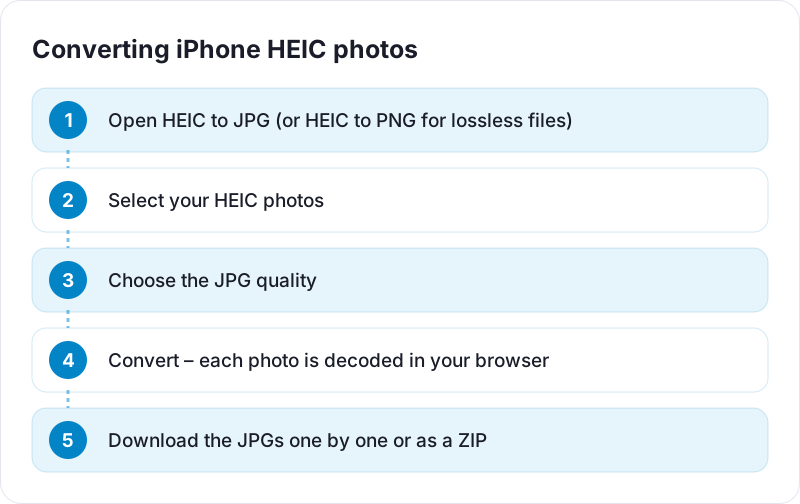
The steps are the same for both:
- Open the converter that matches the format you need.
- Select one or more HEIC files from your device.
- Let the conversion finish; larger photos take a moment longer, since your device is doing the work.
- Download the converted images.
JPG or PNG: which should you pick?
| Choose | When |
|---|---|
| JPG | Sharing photos, uploading to websites, emailing, printing. Files stay reasonably small. |
| PNG | You plan to edit the image further and want to avoid an extra round of lossy compression, or a program specifically requires PNG. |
For ordinary photos, JPG is almost always the right answer. A full-resolution phone photo saved as PNG can be many times larger than the HEIC it came from, without looking any better. That is because PNG is lossless: it faithfully stores every pixel of the decoded image, including fine noise, and noise compresses poorly.
Keep in mind that HEIC is already a lossy format. Converting to PNG preserves what is there but does not restore detail that the original compression removed.
Things to check after converting
- Size and dimensions. Modern phone cameras produce large images. If you are uploading to a site with a size limit, run the converted file through Resize Image to bring it down to a sensible width, for example 2000 pixels on the long edge for most web uses.
- Orientation. Phones record orientation in the file's metadata. Most converters apply it correctly, but if a photo comes out sideways, rotate it before sharing.
- Metadata. Photos can contain location and camera details. Depending on the converter, this information may or may not be carried into the new file, so if privacy matters, check the converted file's properties before posting it publicly.
- Live Photos. A Live Photo is a still image plus a short video stored separately. Converting the HEIC gives you the still picture only.
Should you stop using HEIC?
Not necessarily. If most of your photos stay on your phone or in a cloud library, HEIC saves real storage space with no downside. Converting only when you need to share with something that doesn't support it is a perfectly sensible approach. If you're curious how HEIC compares with the more common formats, see our guide to PNG vs JPG vs WebP.
 Image Resolution and DPI Explained
 How to Reduce Image File Size for Websites
 PNG vs JPG vs WebP and When to Use Each Format