How to Convert PDF Pages to JPG or PNG Images
PDFs are great for keeping a document's layout intact, but sometimes you need a page as a picture instead. Maybe you want to post a slide on social media, drop a chart into a presentation, send a single page in a chat app, or upload a form to a site that only accepts images. Converting a PDF page to an image is simple. Getting a result that is sharp, readable, and a sensible file size takes a little more thought, mainly about resolution and format.
Common reasons to convert PDF pages to images
- Sharing in places that don't handle PDFs well. Messaging apps and social networks show images inline, while a PDF becomes an attachment people may not bother to open.
- Using a page inside another document. Slide software and many website builders accept images more readily than PDFs.
- Previews and thumbnails. A picture of the first page makes a good preview for a downloadable report.
- Uploading to image-only forms. Some application portals ask for a JPG or PNG of a certificate or ID document.
- Fixed appearance. An image looks the same everywhere, with no font substitution or viewer differences.
How the conversion works
Most PDF pages aren't stored as pictures. Text is stored as characters plus fonts, and drawings are stored as shapes. These are resolution-independent: they stay sharp however much you zoom.
An image, by contrast, is a grid of pixels. Converting means "rendering" the page, drawing it onto a grid at a particular resolution. Once rendered, the page has a fixed amount of detail. Zoom in too far and you'll see the pixels.
That's why resolution is the key decision.
Choosing the right resolution
PDF page sizes are defined in points, where one point is 1/72 of an inch. So a page rendered at 72 DPI produces one pixel per point. Higher DPI means more pixels per inch of paper, and a sharper image.
Here's how that works out for the two most common paper sizes:
| Resolution | US Letter (8.5 × 11 in) | A4 (210 × 297 mm) |
|---|---|---|
| 72 DPI | 612 × 792 px | 595 × 842 px |
| 150 DPI | 1275 × 1650 px | 1240 × 1754 px |
| 300 DPI | 2550 × 3300 px | 2480 × 3508 px |
How to choose:
- 72 DPI is enough for small previews and thumbnails, but body text will usually be hard to read.
- 150 DPI is a good default for viewing on screen and sharing online. Normal-sized text is comfortably readable on a phone or laptop.
- 300 DPI is the usual choice for printing, for pages with small print or fine detail, and when people will need to zoom in.
Keep in mind that doubling the DPI quadruples the number of pixels, because both width and height double. A 300 DPI page has four times the pixels of a 150 DPI page, with a matching increase in file size and in the memory needed to create it. Converting a long document at a very high resolution can make a phone or older laptop work hard.
If the converter you're using offers a resolution or scale setting, pick it based on where the image is going. You can always shrink a high-resolution image later, but you can't add detail to a low-resolution one. For a fuller explanation of pixels, DPI, and print size, see image resolution and DPI explained.
JPG or PNG for PDF pages?
The two formats handle document pages very differently.
PNG is lossless. It stores every pixel exactly, so text edges stay crisp with no blur or halo. Typical document pages have large areas of plain white and a limited number of colors, which PNG compresses efficiently. For text-heavy pages, forms, spreadsheets, and diagrams, PNG often looks noticeably cleaner, and the file size is usually reasonable.
JPG is lossy and designed for photographs. It is excellent for pages that are mostly photos, such as brochures, magazine spreads, or scanned color pages, where it produces much smaller files than PNG. On pages of plain text, though, JPG compression tends to create faint smudges around letters, especially at lower quality settings.
| Page content | Better format |
|---|---|
| Text documents, forms, invoices | PNG |
| Charts, diagrams, slides with flat colors | PNG |
| Photo-heavy brochures and magazines | JPG |
| Scanned pages (already photographic) | JPG |
| Anything where file size is the top priority | JPG |
Step-by-step: converting in your browser
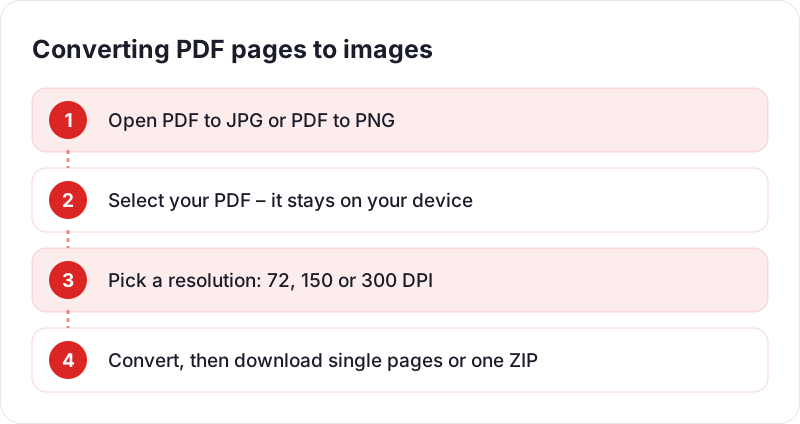
PDF Planet has two converters: PDF to JPG and PDF to PNG. Both render the pages inside your browser, so the PDF is never uploaded to a server.
- Pick the converter for the format you want, using the table above.
- Select your PDF.
- Let the tool render the pages. Longer documents take a little longer, since your own device is doing the work.
- Download the images.
If you only need a few pages
Converting a 60-page report to get one chart is wasteful. Use Extract PDF Pages to pull out just the pages you need into a smaller PDF, then convert that.
After converting
- Check readability at actual size. Open the image at 100% on the device people will use. If small text is fuzzy, convert again at a higher resolution.
- Resize or compress for the web. A 300 DPI page is far larger than a website or chat app needs. Shrinking it to around 1200 to 1600 pixels wide is usually plenty for on-screen viewing.
- Crop if needed. For a single chart or signature, crop away the rest of the page so the important part is clear.
- Add alt text. When you put a page image on a website, the text inside it is invisible to screen readers and search engines. Describe the important content in the image's alt text or nearby on the page.
Limitations to be aware of
Once a page becomes an image, its text is just pixels. You can't select it, search it, or copy it, and links stop working. If what you actually need is the text, convert the original PDF with a text extraction tool instead. That only works when the PDF contains real text; scanned pages are already images, and pulling text from them requires OCR (optical character recognition) software.
Going the other way is simple: if you have a set of page images and need a PDF again, the JPG to PDF and PNG to PDF tools will combine them back into a single document.
 Image Resolution and DPI Explained
 Are Online PDF Tools Safe to Use?
 What Is HEIC and How Do You Convert It to JPG or PNG?