Image Resolution and DPI Explained
Few image terms cause as much confusion as DPI. A print shop asks for "300 DPI," a website says images should be "72 DPI," and your photo editor shows a number that doesn't seem to change anything. The confusion clears up once you separate two ideas: the number of pixels an image actually has, and the instruction about how big those pixels should be when printed. This guide explains both, with the formulas and numbers you need for print and for screens.
Pixels: the only thing an image really contains
A digital image is a grid of colored squares called pixels. A photo described as 4000 × 3000 has 4000 pixels across and 3000 down, 12 million in total, which is why it's called a 12-megapixel image.
The pixel dimensions are the image's real resolution. They determine how much detail it can hold. Everything else, including DPI, is just information about how those pixels should be displayed or printed.
DPI vs PPI
Strictly speaking, these mean different things:
- PPI (pixels per inch) describes how densely an image's pixels are laid out when printed or displayed. It's a property of the image or the screen.
- DPI (dots per inch) originally describes a printer: how many tiny dots of ink it places per inch. Printers use many ink dots to reproduce a single pixel's color, so a printer's DPI is usually much higher than an image's PPI.
In everyday use, including in most software and by most print shops, "DPI" is used to mean PPI. When someone asks for a "300 DPI image," they mean an image with enough pixels to print at 300 pixels per inch at the intended size. This article follows that common usage.
The one formula you need
Print size (inches) = pixels ÷ PPI
Or, rearranged:
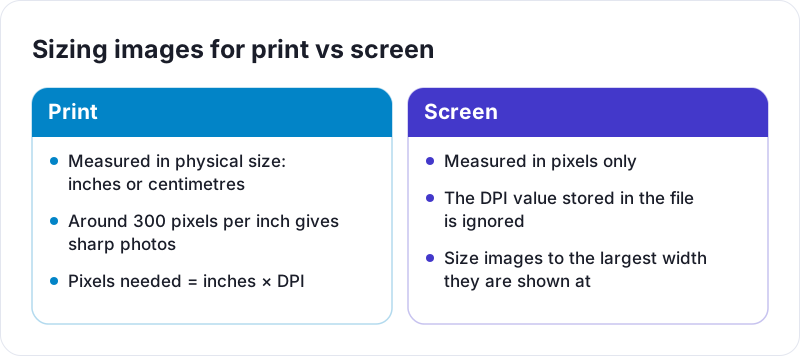
Pixels needed = print size (inches) × PPI
So a 3000 × 2000 pixel photo:
- At 300 PPI prints at 10 × 6.67 inches
- At 150 PPI prints at 20 × 13.33 inches
- At 100 PPI prints at 30 × 20 inches
The image is identical in every case. Only the amount of paper each pixel covers changes.
Why the DPI number in a file often "does nothing"
Image files can store a DPI value in their metadata. It's a suggestion for print size, nothing more. Changing it from 72 to 300 without changing the pixels doesn't add any detail. It just tells software to print the same pixels smaller.
That's why you'll see two options in many photo editors:
- Change DPI without resampling: pixel count stays the same, print size changes. No quality change.
- Change DPI with resampling: the editor adds or removes pixels to hit a new size. This changes the image.
Screens ignore the DPI value entirely. A 1200-pixel-wide image displays at the same size on a web page whether its metadata says 72 or 300.
Where "72 DPI for the web" came from
Early Macintosh screens displayed about 72 pixels per inch, which matched the typographic point (1/72 inch), so one pixel equaled one point on screen. The idea of "72 DPI for screen" stuck long after screens changed. Today it has no practical effect; what matters for the web is pixel dimensions.
How many pixels you need for print
The right PPI depends on viewing distance. Things you hold in your hand are scrutinized closely; posters across a room are not.
- 300 PPI: the standard target for photo prints, brochures, and anything viewed up close.
- 150 to 200 PPI: usually acceptable for larger prints and posters viewed from a step or two back.
- Lower: large banners and billboards viewed from a distance can use much less.
Pixel dimensions for common print sizes at 300 PPI:
| Print size | Pixels needed at 300 PPI |
|---|---|
| 4 × 6 in | 1200 × 1800 |
| 5 × 7 in | 1500 × 2100 |
| 8 × 10 in | 2400 × 3000 |
| A4 (8.27 × 11.69 in) | 2480 × 3508 |
| US Letter (8.5 × 11 in) | 2550 × 3300 |
If your image has fewer pixels than this, it will still print; it will just be a little softer. For a casual 8 × 10 print, an image at 200 PPI often looks fine. Print shops sometimes warn about low resolution based purely on the numbers, so view the image at its print size on screen to judge for yourself.
Sizing images for screens
On screens, pixel dimensions are everything, with one complication: high-density displays.
Web pages are laid out in CSS pixels. On many phones and laptops, each CSS pixel is drawn using two or three physical pixels (this ratio is called the device pixel ratio). An image displayed 600 CSS pixels wide on a phone with a ratio of 3 is actually drawn across 1800 physical pixels. If the image is only 600 pixels wide, the phone has to stretch it, and it looks slightly soft.
A practical approach:
- Work out the largest size the image appears at, in CSS pixels.
- Provide roughly twice that width. Beyond 2×, most people can't see the difference, and file sizes grow quickly.
For example, an image shown 800 pixels wide in a blog layout should be about 1600 pixels wide. Our guide to reducing image file size for websites covers this in more detail.
Resizing: why shrinking is safe and enlarging isn't
Downscaling combines existing pixels into fewer pixels. Done with a good algorithm, the result looks clean and often sharper at its new size. This is safe and the most common resize you'll do. Resize Image handles it in your browser; you can then run the result through Compress Image to bring the file size down further.
Upscaling asks software to invent pixels that were never captured. Standard methods fill them in by blending neighbors, which makes the image bigger but not more detailed; it tends to look soft. AI upscalers can produce more convincing results by guessing plausible detail, but it is still a guess, not recovered information. Whenever possible, go back to the original, higher-resolution source instead.
Resolution when scanning and converting documents
The same principles apply to documents:
- Scanning: 300 DPI is a solid default for text documents. 150 DPI keeps files small and is often enough for on-screen reading. Higher settings are useful for photos you might enlarge.
- Converting PDFs to images: a PDF page has no fixed pixel size until it is rendered, so the DPI you choose decides the output dimensions. At 150 DPI, a US Letter page becomes 1275 × 1650 pixels; at 300 DPI, 2550 × 3300. The PDF to PNG converter renders pages in your browser, and our guide to converting PDF pages to images explains how to choose.
Quick reference
- Pixel dimensions are the real resolution. DPI is an instruction for print size.
- Print size = pixels ÷ PPI. Aim for 300 PPI for close viewing.
- Screens ignore DPI. Size web images to about twice their displayed width.
- Shrinking is safe. Enlarging can't add real detail.
 How to Reduce Image File Size for Websites
 What Is HEIC and How Do You Convert It to JPG or PNG?
 How to Convert PDF Pages to JPG or PNG Images