PNG vs JPG vs WebP and When to Use Each Format
PNG, JPG, and WebP are the three image formats you will run into most often, and picking the wrong one is the reason many images are blurry, oversized, or rejected by an upload form. Each format was designed for a different job. Once you understand how each one stores an image, choosing between them becomes straightforward.
Lossy vs lossless: the core difference
Every image format compresses data, but there are two very different ways to do it.
Lossless compression stores the image so that it can be rebuilt exactly, pixel for pixel. It works by finding patterns and repetition. Large areas of the same color compress very well; random detail, like the texture of grass in a photo, does not.
Lossy compression throws away information that the eye is unlikely to miss, then stores what is left. The result is much smaller, but the discarded detail is gone for good. Saving a lossy image again discards a little more each time, which is why an image that has been downloaded, edited, and re-uploaded many times starts to look smeared.
JPG (JPEG)
JPEG has been around since the early 1990s and is supported by practically every device, app, and website. It is a lossy format designed specifically for photographs.
How it works, in short:
- The image is converted from red, green, and blue into one brightness channel and two color channels. Because the eye is more sensitive to brightness than to color, the color channels are often stored at reduced resolution.
- The image is divided into 8×8 pixel blocks. Each block is converted into frequency components using a mathematical transform.
- The fine, high-frequency detail is rounded off according to the quality setting. Lower quality means more rounding and a smaller file.
This works beautifully on photos, where gradual changes in color and texture hide the rounding. It works poorly on sharp edges. Text, line drawings, and screenshots saved as JPG often show faint halos or blocky noise around edges.
JPG has two other limitations worth knowing: it does not support transparency, and it is not ideal for images that you will edit and re-save repeatedly.
PNG
PNG is a lossless format created in the mid-1990s as a patent-free replacement for GIF. It compresses each row of pixels by predicting values from neighboring pixels and then packing the differences with the same DEFLATE method used in ZIP files.
PNG's strengths:
- Exact reproduction. No artifacts, no matter how many times you save it.
- Transparency. PNG supports a full alpha channel, so edges can fade smoothly into whatever is behind them. This is why logos and icons are usually PNG.
- Sharp edges. Screenshots, diagrams, charts, and text stay crisp.
Its weakness is photographs. Because a photo has very little exact repetition, a PNG photo is often several times larger than a good-quality JPG of the same image, with no visible benefit.
PNG also has a palette mode (often called PNG-8) that limits the image to 256 colors. For simple graphics with few colors it can produce very small files.
WebP
WebP was released by Google in 2010 as a format for the web. It is really two formats in one:
- A lossy mode based on the image-coding part of the VP8 video codec. Instead of only working block by block like JPG, it predicts each block from pixels already decoded around it and stores only the difference, which generally produces smaller files at similar visual quality.
- A lossless mode with its own set of techniques, which typically produces smaller files than PNG for the same image.
Both modes support transparency, and WebP also supports animation, making it a modern replacement for many uses of JPG, PNG, and GIF.
Is WebP safe to use now?
For websites, yes. Chrome, Edge, Firefox, and Opera have supported WebP for years, and Safari added support in version 14 in 2020. The gaps are mostly outside the browser: some older desktop software, certain print services, document editors, and upload forms still reject WebP or handle it badly. If you are sending an image to a person or a service you don't control, JPG or PNG remains the safer choice.
Side-by-side comparison
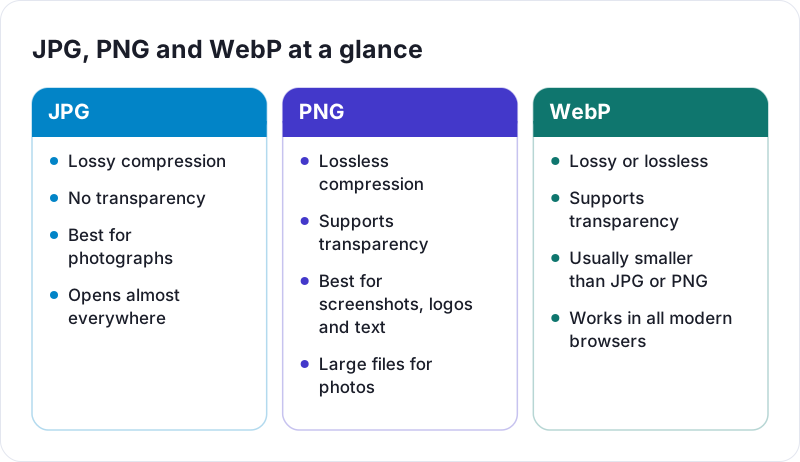
| JPG | PNG | WebP | |
|---|---|---|---|
| Compression | Lossy | Lossless | Lossy or lossless |
| Transparency | No | Yes | Yes |
| Animation | No | No (APNG exists but is rarely used) | Yes |
| Best for | Photos | Graphics, screenshots, logos | Web images of all kinds |
| Compatibility | Universal | Universal | All modern browsers; patchy in some apps |
Which one should you choose?
A simple way to decide:
- Does the image need transparency? If yes, use PNG or WebP. JPG cannot do it.
- Is it a photograph or a realistic image? Use JPG for sharing and general use, or lossy WebP for a website.
- Is it a screenshot, diagram, chart, logo, or anything with text? Use PNG, or lossless WebP for a website.
- Will someone else need to open or print it? Favor JPG or PNG for maximum compatibility.
- Is it a master copy you will keep editing? Keep it in a lossless format and export a JPG or WebP at the end.
Converting between formats: what to expect
Converting changes how an image is stored, but it cannot recover detail that was already lost.
- PNG to JPG makes photos much smaller. Transparent areas have to be filled with a solid color, usually white, because JPG has no transparency. You can do this with the PNG to JPG converter.
- JPG to PNG will not improve quality. Any JPEG artifacts are preserved exactly, and the file usually gets bigger. It is only useful when a program specifically requires PNG or you plan to edit the image losslessly from here on.
- WebP to JPG is the usual fix when a downloaded image won't open in an older app or upload form. The WebP to JPG tool handles this.
- PNG to WebP is a good step when preparing graphics for a website; try the PNG to WebP converter and compare the file sizes.
All of these conversions on PDF Planet run in your browser, so your images stay on your device.
A note on newer formats
AVIF, based on the AV1 video codec, is newer than WebP and often compresses even further. Browser support has become broad, but tool and app support is still catching up. HEIC, the default photo format on iPhones, is another efficient format with limited compatibility outside Apple devices. For most everyday decisions, though, JPG, PNG, and WebP cover what you need.
If your goal is faster web pages specifically, format is only one part of the picture. Our guide on reducing image file size for websites covers dimensions, compression settings, and how images affect page speed.
 How to Reduce Image File Size for Websites
 What Is HEIC and How Do You Convert It to JPG or PNG?
 Image Resolution and DPI Explained